Use Guided Access to keep your baby inside one iPhone app and block taps, swipes, and buttons.
Learning how to lock the screen on iPhone for baby is useful during videos, music, or a family call. Apple’s Guided Access feature turns the iPhone into a simple, focused device. It can stop curious taps from closing an app, calling someone, or changing a video. This guide explains the safest setup, useful settings, common mistakes, and limits parents should know.

What does locking an iPhone for a baby mean?
When parents ask how to lock the screen on iPhone for baby, they often mean more than turning off the display. They want the baby to stay inside one app without pressing Home, swiping to another screen, or opening settings.
The best built-in tool is Guided Access. It is an accessibility feature made to limit an iPhone to one app. You can also block touch, motion, the volume buttons, and the side button.
Guided Access is helpful for:
• Playing a baby video without accidental taps
• Showing photos without letting a child delete them
• Keeping a music app open
• Preventing calls and app switching
• Letting a baby look at an app with fewer distractions
Guided Access is not a full child safety system. It does not replace parental controls, age ratings, supervision, or safe screen habits. Think of it as a temporary gate around one app.
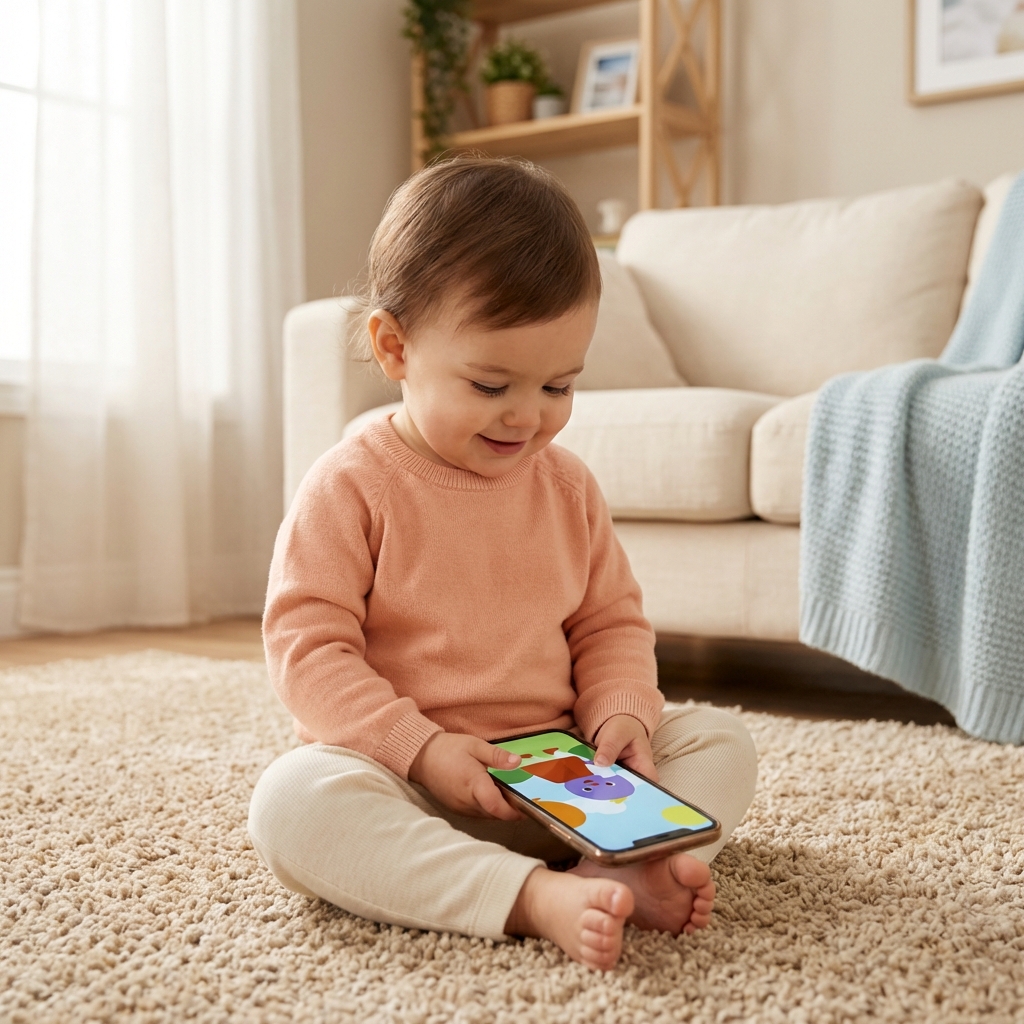
How to lock the screen on iPhone for baby with Guided Access
The following steps explain how to lock the screen on iPhone for baby on most recent iPhone models. The wording may vary slightly by iOS version, but the process is very similar.
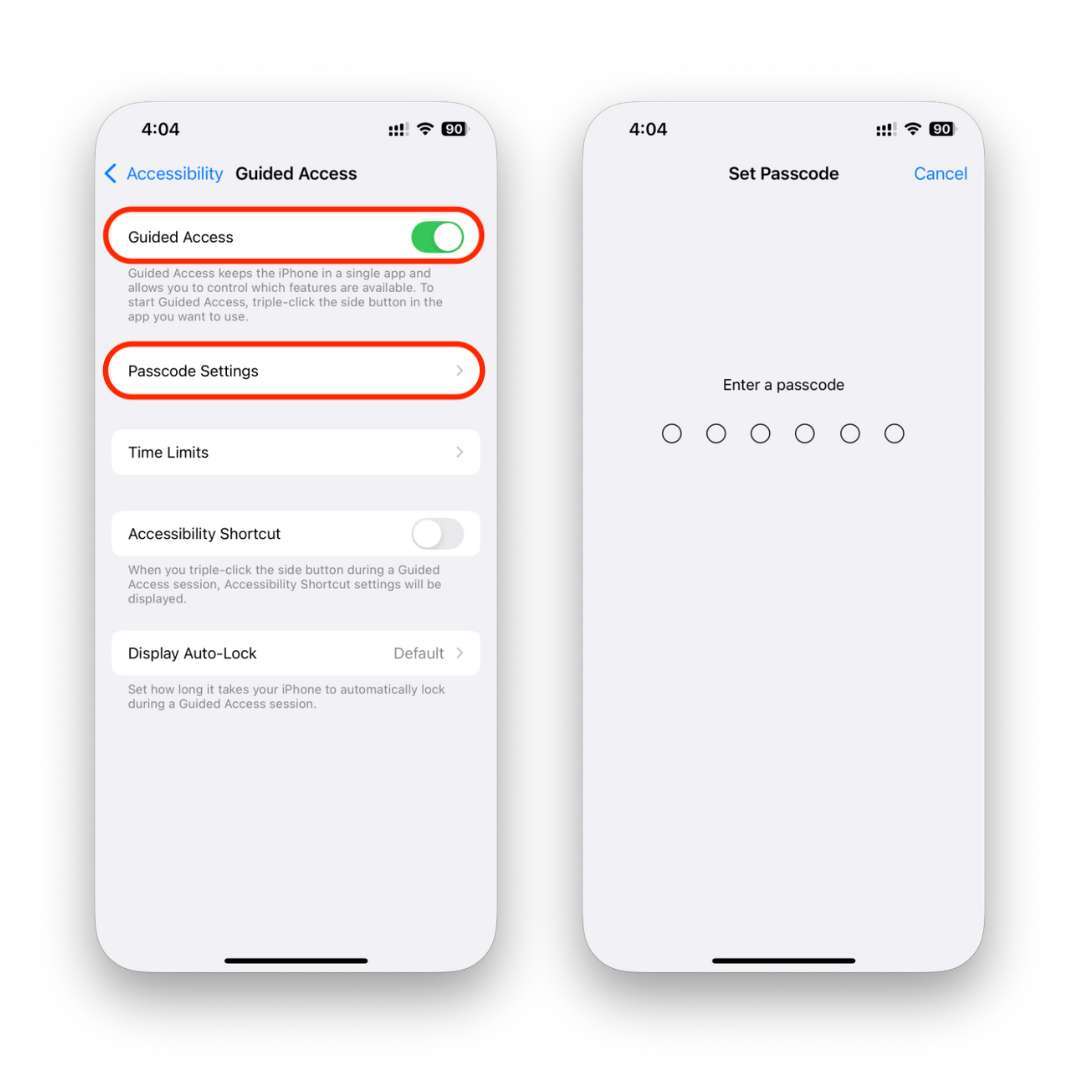
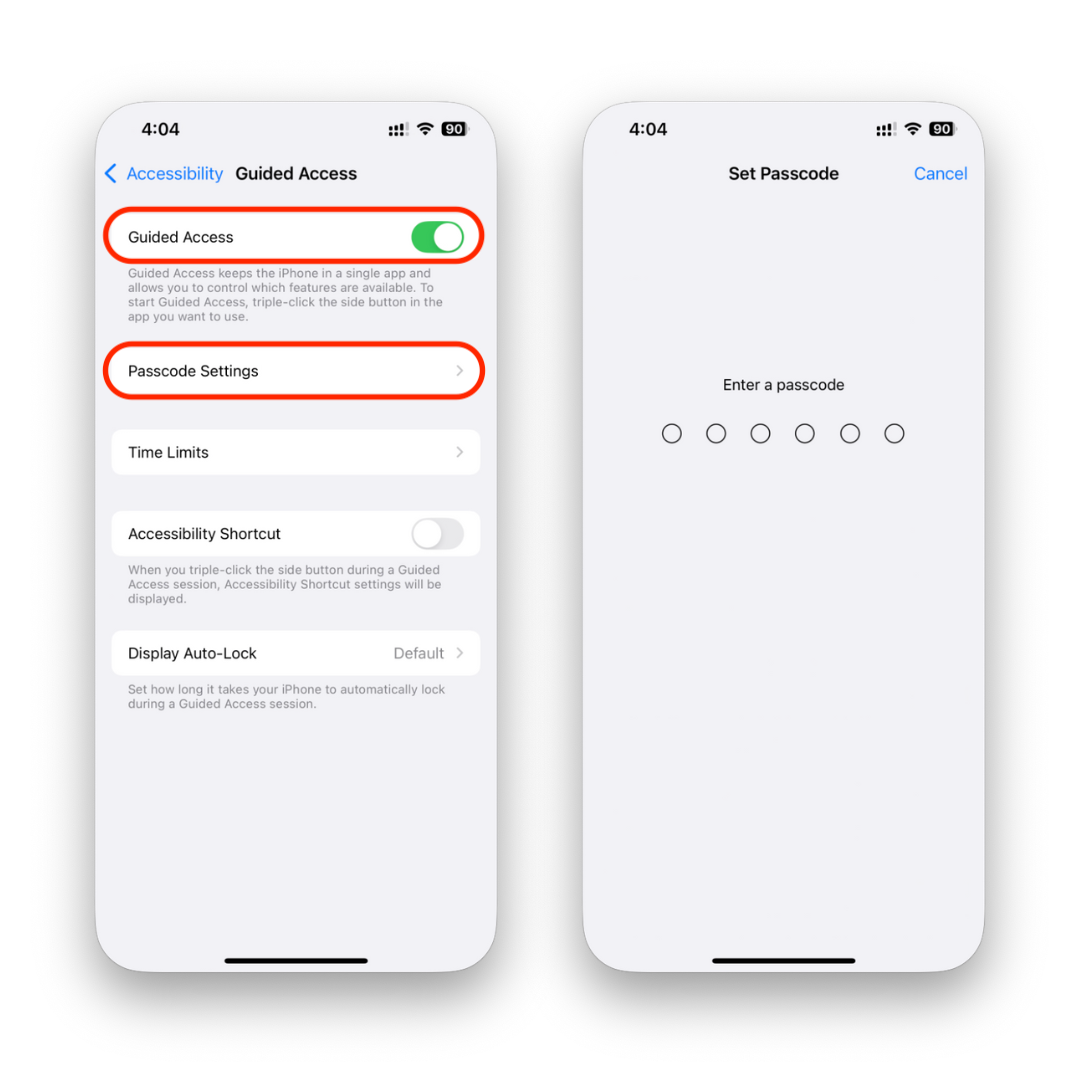
Step 1: Turn on Guided Access
- Open the Settings app.
- Tap Accessibility.
- Scroll down and tap Guided Access.
- Turn on Guided Access.
- Tap Passcode Settings.
- Choose Set Guided Access Passcode.
- Enter a passcode that your baby cannot guess.
- Turn on Face ID or Touch ID if the option appears.
Use a passcode that is different from a simple pattern your child may see often. Face ID can make it easier for you to end the session without typing the passcode every time.
Step 2: Open the app
Open the app you want your baby to use. This could be a video app, music app, photo album, or a baby-friendly game.
Start the content before you begin Guided Access. For example, open a video, set the volume, and move the playhead to the right spot.
Step 3: Start Guided Access
Press the Side button three times quickly on an iPhone with Face ID. On an older iPhone with a Home button, press the Home button three times.
If a menu appears, tap Guided Access. You may then see a setup screen with several controls.
Step 4: Choose the restrictions
Before tapping Start, review the available options. You can usually:
• Turn off Touch
• Turn off Motion
• Turn off the Side button
• Turn off the Volume buttons
• Set a time limit
• Draw circles around areas that should not respond
For a baby, turning off Touch is often the safest choice. The screen can still display a video or photo, but random taps will not pause, close, or change it.
Tap Start. Enter your Guided Access passcode if asked.

How to disable touch while a baby watches
Blocking touch is the key part of how to lock the screen on iPhone for baby. If touch remains active, a baby may pause a video, skip content, open a link, or swipe into another part of the app.
To block touch:
- Start Guided Access with a triple-click.
- Look for the Touch switch.
- Turn Touch off.
- Tap Start.
- Enter your passcode if requested.
The display will still show the app. However, taps and swipes will not work.
There is one important trade-off. If touch is disabled, you cannot quickly pause the video from the screen. You must end or pause Guided Access first. For this reason, start with a short video and check the volume before handing over the phone.
If you want some touch control, leave Touch on and draw a circle over buttons such as:
• Pause
• Close
• Shopping links
• Account controls
• Full-screen controls
This approach gives you more flexibility, but it is less secure than turning touch off completely.
How to stop the side and volume buttons
Another part of how to lock the screen on iPhone for baby is disabling physical buttons. Babies often press buttons without knowing what they do.
During Guided Access setup, look for these settings:
Side button
Turn off the Side Button option if you do not want the baby to lock the phone or wake Siri-related features. This can help keep the current session active.
Volume buttons
Turn off Volume Buttons if you want to prevent sudden volume changes. A baby may press the buttons many times, which can make sound too loud or too quiet.
Always set a safe volume before starting. The American Academy of Pediatrics recommends sensible limits for children’s media use, and loud sound can harm hearing. Guided Access cannot protect against unsafe volume.
Motion
Turn off Motion if tilting the phone could affect the app. This can help stop screen rotation or motion-based controls.
These options make how to lock the screen on iPhone for baby more reliable, but they do not make the phone babyproof. A baby can still drop the phone, chew the case, or place it near liquids.

How to keep the iPhone screen from turning off
Parents often ask how to lock the screen on iPhone for baby while keeping a video visible. Guided Access may allow you to set a display auto-lock time during the session.
To check this setting:
- Start Guided Access with a triple-click.
- Tap Options.
- Look for Display Auto-Lock.
- Choose a longer time, if available.
- Tap Start.
The exact choices depend on the iPhone model and iOS version. Some versions may show a setting such as Never, while others offer several time periods.
Keeping the screen on uses more battery. It can also make the phone warm, especially during video streaming. Do not cover the phone with a blanket or place it in a baby’s crib.
A better habit is to use a short session and keep the phone on a firm surface nearby. Never attach a loose phone to a crib, stroller strap, or infant’s clothing.

How to end Guided Access safely
Knowing how to lock the screen on iPhone for baby also means knowing how to unlock it. The process is simple for the parent but difficult for a child who does not know the passcode.
On an iPhone with Face ID:
- Triple-click the Side button.
- Look at the phone for Face ID or enter the passcode.
- Tap End.
On an iPhone with a Home button:
- Triple-click the Home button.
- Enter the Guided Access passcode or use Touch ID.
- Tap End.
If you forget the passcode, you may need to use your Apple Account recovery process or restart the iPhone. Avoid guessing repeatedly, since security features may create delays.
A useful routine is to end Guided Access as soon as the baby is finished. This prevents the next user from wondering why the iPhone seems frozen.

Guided Access versus Screen Time
Guided Access and Screen Time solve different problems. Understanding the difference makes how to lock the screen on iPhone for baby much easier.
Guided Access
Guided Access controls one app during one session. It is best when you hand over your iPhone for a short time.
It can:
• Block touch
• Disable buttons
• Prevent app switching
• Set a session timer
• Limit the phone to one app
Screen Time
Screen Time manages broader use across the iPhone. It can set app limits, downtime, communication limits, content restrictions, and purchase controls.
Screen Time is better for:
• Managing a child’s regular device use
• Blocking mature content
• Limiting app downloads
• Requiring permission for purchases
• Creating a family device plan
Screen Time does not replace Guided Access when your main goal is to keep a baby inside one open app. Many parents use both tools, but Guided Access is the direct answer to how to lock the screen on iPhone for baby during a short session.

Common mistakes parents should avoid
The most common mistake is starting Guided Access before checking the app. If the video is not ready, you may need to unlock the session again to fix it.
Avoid these problems:
• Using a passcode the baby can watch you enter
• Leaving Touch enabled when you want a frozen screen
• Forgetting to check the volume
• Allowing autoplay without checking the next video
• Placing the phone within reach of the baby’s mouth
• Covering the phone during a long video
• Assuming Guided Access blocks every online ad or link
• Forgetting to end the session afterward
• Relying on a phone to replace adult supervision
Some apps show ads, external links, or unsuitable recommendations. Guided Access can keep the user in the app, but it cannot judge every piece of content inside that app.
For younger babies, sound and movement can be more stimulating than helpful. A calm audio track or a short family video may be a better choice than fast, bright content.

A practical setup for real-life use
A simple routine can make how to lock the screen on iPhone for baby less stressful.
Try this setup:
- Charge the iPhone before the session.
- Choose a trusted, age-appropriate app.
- Set the volume before handing over the phone.
- Open the exact video or photo.
- Triple-click the Side button or Home button.
- Turn off Touch and the buttons you do not need.
- Set a short time limit.
- Tap Start.
- Stay close and watch the baby.
- End Guided Access when the session is over.
In real family settings, the small details matter. A phone that works well on a kitchen counter may not work well in a moving car. Reflections, weak Wi-Fi, low battery, and accidental volume changes can all spoil the plan.
One lesson many parents learn is to test the setup before the baby needs it. The first attempt is not the right time to discover that Touch is still active or that a passcode prompt appears.
Benefits and limits of locking an iPhone for a baby
The main benefit of how to lock the screen on iPhone for baby is control. You decide which app opens, which controls respond, and how long the session lasts.
Other benefits include:
• Fewer accidental calls
• Less app switching
• Protection from unwanted purchases
• Easier use during travel or waiting rooms
• A more predictable viewing experience
• Less risk of a baby deleting photos or changing settings
There are also limits. Guided Access does not prevent physical damage, protect hearing, or guarantee that all content is suitable. It cannot replace a safe case, careful supervision, or a thoughtful media plan.
The iPhone may also become warm during charging or streaming. Stop using it if it feels unusually hot. Keep it away from water, food, loose blankets, and small accessories.
The safest approach treats Guided Access as a short-term tool, not a babysitter. It creates a boundary around the screen, but an adult still needs to watch the child.
Frequently Asked Questions
What is the fastest way to lock the screen on iPhone for baby?
Open the app, triple-click the Side button or Home button, choose Guided Access, turn off Touch, and tap Start. You must first enable Guided Access and create a passcode in Settings.
Can I lock an iPhone to one app without blocking touch?
Yes. Start Guided Access and leave Touch enabled. You can also draw circles over specific buttons to block only those areas.
How do I unlock the iPhone after Guided Access starts?
Triple-click the Side button or Home button, then use Face ID, Touch ID, or your Guided Access passcode. Tap End to leave the session.
Does Guided Access work on every iPhone?
Guided Access works on iPhones that support the feature through iOS accessibility settings. The button names and available options can vary by iOS version and iPhone model.
Can a baby still make an emergency call?
Guided Access limits the current app, but no phone setup should be treated as a replacement for emergency awareness. Keep an adult nearby and make sure you understand how your iPhone handles emergency calling.
Does this feature block unsuitable videos?
No. Guided Access limits phone controls, not every item inside an app. Choose the content yourself and review autoplay, ads, recommendations, and account settings.
Conclusion
Guided Access is the most practical answer to how to lock the screen on iPhone for baby. Enable it in Accessibility settings, open a suitable app, triple-click the Side or Home button, disable Touch, and set a short session when needed.
Check the volume, keep the phone cool and secure, and stay close while the baby uses it. Use Screen Time for broader family controls, and treat Guided Access as a temporary safety boundary rather than a substitute for supervision.
Try the setup before your next trip, meal, or waiting-room visit. Once you know the steps, you can create a calmer and more controlled iPhone experience for your family.